How it works
-
Start from a layout, or add tables. Press Start from a layout for a ready arrangement (the next section lists them), or press Add for a Round table, a Rectangle or Rows; the same menu adds a head table (seats on one side, facing the room), a sweetheart table for two, a pod of four desks, a horseshoe or curved rows. Select a table and its panel opens at the bottom of the canvas: rename it, set its seats (or rows × seats per row), seat one side or both, add end seats, Duplicate it (the copy goes beside it, empty) or Delete it. On screens 850 pixels wide or more, Delete in the bar above the chart removes the selected table too, and Undo brings it back with everyone who sat there. Drag a table anywhere and it snaps to a light grid. Spacing shows how far apart neighboring tables sit on the drawing, in feet and inches at one grid square to the foot, rounded down to the nearest 6 inches. Between two tables it marks 4 ft 6 in or more as fine and less as tight, since Stuart sets tables about 54 to 60 inches apart and Planning Pod 60 (sources 7 and 9). Between two blocks of chairs, where the gap is the aisle itself, 3 ft or more is fine (the ADA’s 36-inch minimum clear width for an accessible route, source 10), 2 ft up to 3 ft is tight and under 2 ft narrow (Stuart’s 24-inch minimum aisle between chairs; Planning Pod gives 24 inches between rows of chairs, sources 7 and 9). A table beside a block of chairs is judged as between tables, and tables that overlap are marked so. Basis: our thresholds, set from those sources. The tables are drawn to fit names, not to scale, so the figures describe the drawing; the guests-per-table calculator explains how much space to leave in the room.
The panel also checks the seats against real furniture. For a round table it names the rental size for that many seats, from the ranges four rental companies publish (sources 1 and 6–8; the guests-per-table calculator lists them). Up to 6 seats get a 48-inch round (for 2 to 6, also the smaller rounds that Party Rental Ltd. or Stuart list for that count), 7 or 8 a 60-inch, 9 or 10 a 66- or 72-inch, and 11 or 12 a 72-inch, a count only Party Rental Ltd. and Stuart list. Once you choose the size you have, it says whether your count fits, is tight (only some of those companies list it) or is too many. A round table with more seats than its size holds, or more than 12 with no size chosen, gets a “!” on the chart. For a rectangle it says how many 6 ft or 8 ft banquet tables it takes, or how many of the length you choose. If your tables are another size, choose Other size and type a round table’s diameter in inches, or Other length and a rectangle’s length in feet. A round size that one of the companies lists, such as 54 inches, is judged by that listing, but never better than the listed size above it; any other size is compared with the listed sizes either side (our estimate). Either way a bigger table never gets a worse verdict than a smaller one, and the panel names the sizes it used. A rectangle gets 24 inches a guest along each side, the low end of the 24 to 30 inches of space a guest that Party Rental Ltd. advises for comfortable seating (source 6), which matches the companies’ 3 a side at 6 ft and 4 at 8 ft. Under the chart, To rent adds up the round tables by size, the banquet tables by length and the chairs.
-
Add your guests. Paste names into the Guests box, one per line or as Name,Group,Meal (the group and the meal are optional); columns copied from Excel or Google Sheets work as they are, empty cells included. Type one guest at a time under Add a guest, or use Import file or photo for a file or a photo of the list. A header row is recognized: a Name column is used wherever it sits, First and Last name columns are joined, a Table or Group column becomes the group, a Meal, Entrée, Menu or Dietary column becomes the meal, and columns such as Email or Phone are left out. A name with commas stays whole when it is quoted, as in “Smith, Jr., John”.
-
Seat people. Tap a guest, then a seat; on a desktop you can also drag a name onto a seat. Tap a seated guest’s chair to pick them up and move them, or tap it again to unseat them; with a guest picked up, Edit changes their name, group or meal (a double-click on a name in the list does the same). Auto-fill seats everyone still unseated, as far as the empty seats go. Guests whose group has a table’s name go to that table first. Then, group by group in list order, two or more unseated members of a group go together to one table with room for all of them, preferring the table where most of the group already sits; a single late addition joins their group’s table if it has a free seat; everyone left fills the remaining seats in list order. Shuffle deals everyone out at random. Undo steps back through your last 30 changes (Ctrl+Z on a keyboard), and Redo puts an undone change back (Ctrl+Y or Ctrl+Shift+Z).
-
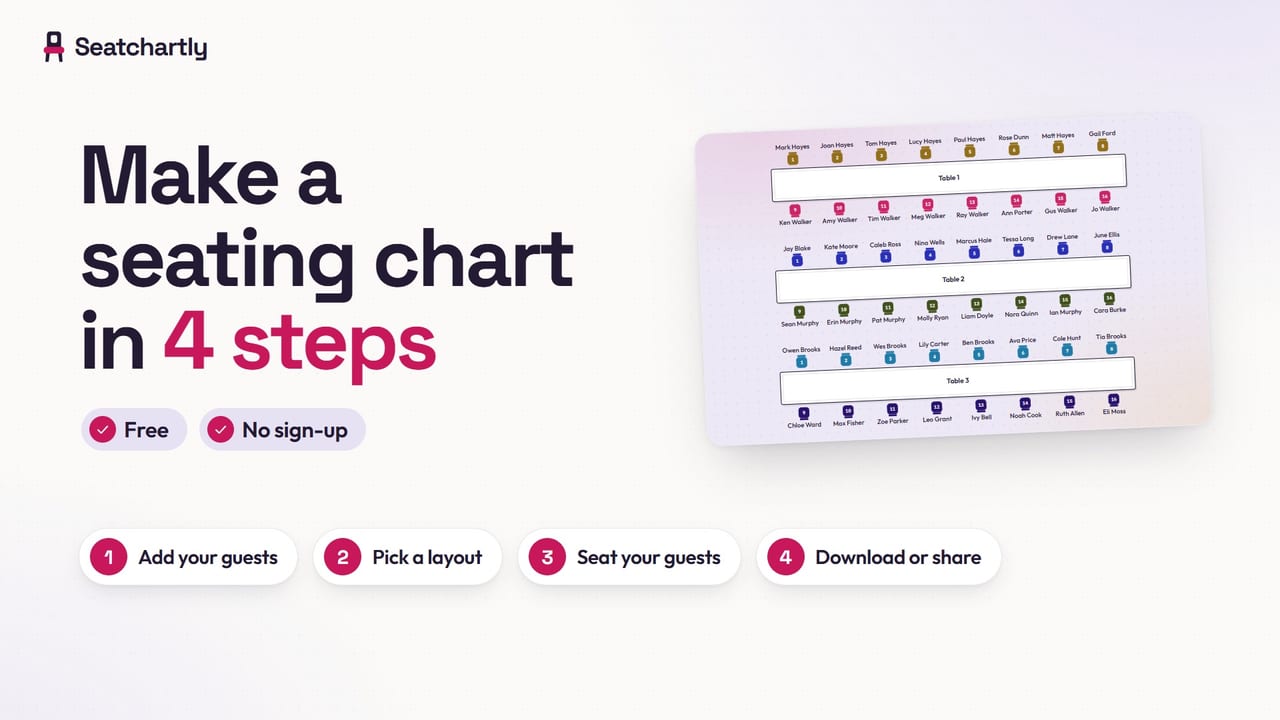
Download, print or share. Download PDF, Print, Download PNG, Download CSV and Share link sit under the chart; What you can download or share lists what each one holds.
With a keyboard, Tab reaches the chart once; the arrow keys then move between tables and seats, Page Up and Page Down jump between tables, Enter picks up or seats a guest, Delete removes a table or unseats whoever sits in a seat, and Escape puts the guest back. In the guest list, the arrow keys move between names and Delete removes one. On a computer, Ctrl and the mouse wheel, or a trackpad pinch, zoom in and out.
The chart saves in this browser after every change, and the line under the buttons says when. Charts, beside the title, keeps up to 20 charts here and switches between them, saving the open one first; Undo then starts afresh for the chart you open. Your guest list is not uploaded, and no names appear in this page’s address or in our analytics.
Ready-made layouts
| Layout | Tables and seats | Suits |
|---|---|---|
| Wedding for 100 | 12 round tables of 8, a head table for 8 and a sweetheart table for 2: 106 seats | A reception with 60-inch rounds |
| Wedding for 150 | 15 round tables of 10 and a head table for 10: 160 seats | A reception with 72-inch rounds |
| Banquet long tables | 3 long tables of 16 (two 8-foot banquet tables end to end, 8 a side): 48 seats | Family-style dinners and banquets |
| Party with mixed tables | 6 round tables of 8 and 2 banquet tables of 8: 64 seats | Parties that mix rounds and long tables |
| One long table | One long table of 24 (three 8-foot banquet tables end to end, 12 a side): 24 seats | A rehearsal dinner, a holiday dinner or a team meal at one table |
| Theater-style arcs | 5 curved rows of 12 facing the stage: 60 seats | Talks, recitals and award nights with everyone facing a stage |
| Ceremony rows | 2 blocks of 6 rows of 4 either side of a center aisle, facing the front: 48 seats | A wedding ceremony with an aisle down the middle |
| Example dinner | A head table for 6 and 4 round tables of 8 (38 seats), with 34 sample guests already seated | Trying the maker out |
| Classroom rows | 5 rows of 6 desks facing the front: 30 seats | Teaching from the front |
| Classroom pods | 6 pods of 4 desks, two facing two: 24 seats | Group work |
| Classroom horseshoe | One U of desks, open toward the front, everyone facing in: 24 seats | Discussion |
| Classroom roundtable | One table of desks pushed together, 7 a side and one at each end: 16 seats | Whole-class and partner discussion |
| Band arcs | 3 curved rows of 10 facing the conductor: 30 seats | Concert bands and orchestras |
| Choir rows | 3 straight rows of 12 facing the director: 36 seats | Choirs |
Loading any layout except the example dinner replaces the tables on the canvas and keeps your guest list, unseated, ready for auto-fill; the example dinner brings its own 34 sample guests. Change any seat count to match your room.
A head table generally seats the couple and their wedding party, often with their partners; a sweetheart table is a two-person table for the couple alone (source 4).
Basis: round tables in the wedding and party layouts use the top of source 1’s ranges (a 60-inch round seats 6–8, a 72-inch round 8–10). Banquet tables seat 4 a side with the ends open, 8 per 8-foot table: the low end of the 8–10 that source 1 gives, where 10 means 4 on each side and one at each end. Head and sweetheart table sizes are our examples. The classroom, band, choir, theater and ceremony layouts are example arrangements, not standards; for the classroom layouts, the Suits column follows the Yale Poorvu Center’s description of each arrangement (source 2). For a band or orchestra, give each section a block of rows with the section’s name and put that name in the guests’ group column: auto-fill seats each section in its own block, and coloring by group colors each section.
What you can download or share
| Output | What it contains | Format |
|---|---|---|
| Page 1: the chart with the title, table names, seat numbers and seated names, plus the legend (groups or meals, each with its count) when seats are colored, and the To rent line when the chart has round or banquet tables. Page 2: a room view, the same tables and chairs drawn in 3D: each seated chair in its guest’s color (ink with colors off), empty chairs gray, the table names when they fit (a large or very wide chart shows none), the legend when seats are colored, and the Seatchartly name. Page 3 onward: every guest A–Z by last name with table and seat, and the meal when there is one (long names, meals and table names are shortened with “…” so each line fits and the meal still shows). Last, when the list has meals: the meals at each table and in total | US Letter, landscape, made in your browser | |
| The chart, the A–Z list and the meals, through your browser’s print dialog (no room view); the A–Z page gets a Meal column when the list has meals | US Letter, landscape, 7 mm margins, no ads | |
| PNG | The chart as drawn, at twice the drawn size for sharp printing, with the legend when seats are colored and a small credit line | .png image |
| CSV | One row per guest: Name, Group, Meal, Table, Seat, sorted A–Z by last name | .csv, opens in Excel, Google Sheets or Numbers |
| Share link | A find-your-table page: a guest types or taps their name and sees their table and seat, with their table marked on a map of the room | A link to send by WhatsApp, text or email |
Basis: our tool’s own output; the CSV follows the quoting rules of RFC 4180 (source 3), so names with commas or quotes survive a round trip.
How the share link keeps names off our server
The link carries the chart itself: the chart title, guest names, groups, table names and seats, and where each table stands on the chart, are compressed into the part of the address after the # sign, which browsers do not send to the server. The find-your-table page reads them back in the guest’s own browser, and our analytics record only that a shared page was opened and how many tables and guests it holds. Anyone who has the link can read the whole list, so send it to the people you would hand a printed list to.
Worked examples
A 100-guest wedding, families kept together. Start from Wedding for 100 (106 seats) and import a list with each guest’s group in the second column. The couple’s group is Sweetheart table and the wedding party’s is Head table, so Auto-fill seats them at those tables first. The other 90 guests are the Johnson family of 12, first on the list, and 18 smaller family and friend groups, listed largest first: one of 8, one of 7, three of 6, two of 5, five of 4, three of 3 and three of 2. Auto-fill seats each smaller group whole at one round table, but no round of 8 holds 12, so the Johnsons end up split across the seats left at other tables. Give them two groups instead, such as Johnson family for 8 of them and Johnson cousins for the other 4, press Unseat all, then Auto-fill: every group sits together, and 6 seats stay spare. Auto-fill places groups in list order, first come, first served, so it helps to list the largest groups first: with other group sizes, or the same groups in another order, a group late in the list can end up split too.
A 28-student classroom in 4 rows of 7. One rows block set to 4 rows × 7 seats per row gives 28 numbered seats (1–7 in the front row, 8–14 in the second, and so on). Import the roster, press Shuffle for a random plan or Auto-fill to seat students in the order of the list (alphabetical if the roster is; a roster with groups in its second column is seated group by group), and print; the A–Z page doubles as a seating list for a substitute. The Yale Poorvu Center notes that in traditional rows students face the instructor with their backs to one another, and that students in back rows tend to be less engaged (source 2), so re-shuffling every few weeks spreads the front seats around. If a student’s IEP or 504 plan lists preferential seating, seat that student by hand first, then press Auto-fill, which keeps anyone already seated; Shuffle moves everyone, so re-seat that student after a shuffle. The National Center on Educational Outcomes notes that the term is commonly read as “close to the teacher,” “away from distractions” or “in the front of the room,” and that the plan should say what it means for that student (source 5).
Basis: the outcomes above come from the tool’s own code; an automated test reruns both examples before each release.
Tips for a good seating plan
- Finish the guest list first. Seating is quick once the names are final; moving people after a late RSVP means re-checking every table.
- Chase missing meals. Color seats by Meal before you print: the legend counts the guests with no meal yet, the replies to chase before the caterer’s deadline.
- Divorced or separated parents. The Knot suggests each parent may host their own table, with their close family members and friends (source 4). Name a table after each host and put that name in the group column, and auto-fill seats each side there first.
- Guests who use wheelchairs. Give them clear, easy access to the dance floor and the exit, as The Knot’s guide advises (source 4); the guests-per-table calculator gives the 36-inch minimum width of an accessible route.
- Leave spare seats. The status line shows spare seats after every change. A couple of spare seats per table absorbs a plus-one without redrawing the plan.
- Print the A–Z list for the door. Guests look for their own name, not their table number; the A–Z pages are sorted by last name for that reason.
Limitations
- Charts are not synced between devices, and a share link is a read-only snapshot: guests can look themselves up but cannot edit the chart. After late changes, make a new link and send that one.
- Reading a photo works well on typed or printed lists. Handwriting often comes through with mistakes, and accented letters can lose or change their accents (Zoë read as Zoe or Zoé), so check the names before you seat anyone.
- Tables cannot be rotated, and the canvas is a plain grid rather than a scaled floor plan, so it shows who sits where, not whether the tables fit the room. The guests-per-table calculator estimates the floor area.
- Seat counts per table are yours to set. The fit notes use the rental companies’ general ranges, and the guests-per-table calculator says what changes how many fit, so confirm the count with whoever supplies the tables.
- The PDF and print view are laid out for US Letter in landscape; other paper sizes have not been checked.
What to do next
Work out how many tables your headcount needs with the guests-per-table calculator, read how we check facts, or see all tools.
Checked against the sources below on October 27, 2026.